APRS & Packet na Raspberry Pi
Raspberry Pi vedle rádia jako samostatná stanice – iGate, digipeater, maják, zprávy, packet. Naběhne samo po zapnutí, na dotykovém displeji ukazuje celou aplikaci a nastavit ho můžeš i z telefonu. Instalace je jeden příkaz, celé to zabere asi půl hodiny, většinou čekáním.
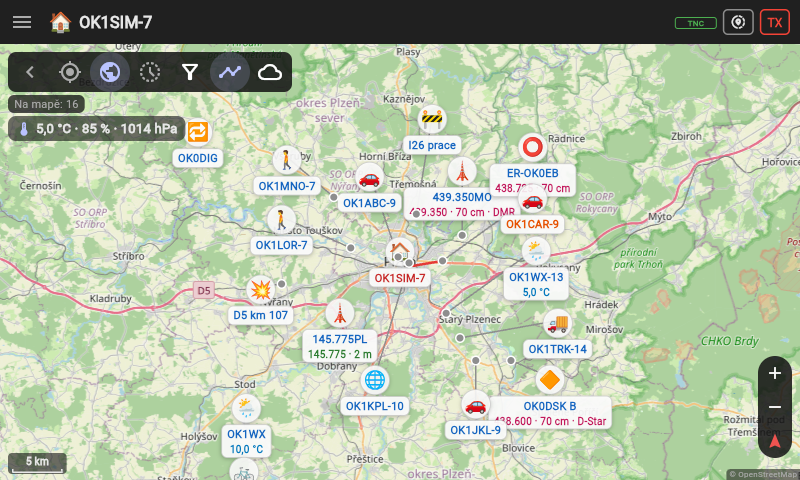
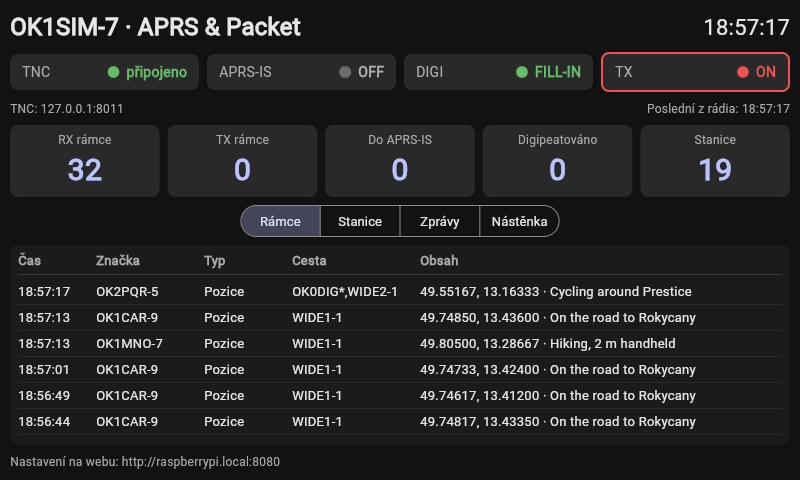
--dashboard)0Co potřebuješ
- Raspberry Pi 3B, 3B+, 4 nebo 5 a jeho zdroj (Pi 4: USB-C 5 V / 3 A, Pi 3: micro-USB 5 V / 2,5 A)
- microSD kartu 16 GB nebo větší
- TNC: KISS TNC na USB (rádio s KISS přes USB, NinoTNC, Mobilinkd…), síťové KISS TNC, nebo zvukovou kartu / kabel AIOC či DigiRig s Direwolfem
- displej (nepovinně): 5" HDMI dotykový 800×480, oficiální 7" displej nebo jakýkoli monitor – bez displeje se ovládá jen přes web
1Připrav kartu
- Do počítače nainstaluj Raspberry Pi Imager.
- Vyber zařízení (své Pi), systém – s displejem Raspberry Pi OS (64-bit), bez displeje Raspberry Pi OS Lite (64-bit) – a kartu.
- Klikni na Další a pak Upravit nastavení:
- Hostname:
aprs(Pi pak najdeš jakoaprs.local) - uživatel a heslo, třeba
pia vlastní heslo - Wi-Fi: síť, heslo a země CZ (s kabelem do sítě netřeba)
- na kartě Služby zapni SSH
- Hostname:
- Ulož, potvrď zápis a počkej, až Imager skončí.
2Zapoj a zapni
Kartu dej do Pi, připoj displej (5" HDMI displej se nasadí na piny GPIO a propojí spojkou HDMI z balení), TNC do USB a nakonec zdroj. První start trvá pár minut.
3Připoj se k Pi
Z počítače ve stejné síti otevři terminál (Windows: PowerShell, macOS a Linux: Terminál):
ssh pi@aprs.localpi nahraď svým uživatelem. Na otázku o klíči odpověz yes a zadej heslo.
S klávesnicí na Pi můžeš místo toho otevřít Terminál přímo na něm.
4Nainstaluj – jeden příkaz
Vyber řádek podle displeje a vlož ho do terminálu:
curl -fsSL https://aprs.ok1sim.cz/pi.sh | bash -s -- --touch-5inchcurl -fsSL https://aprs.ok1sim.cz/pi.sh | bashcurl -fsSL https://aprs.ok1sim.cz/pi.sh | bash -s -- --no-displayNa konci se skript zeptá na heslo k webu – nastav ho, přes web se dá vysílat. Na Pi 4 to trvá kolem 5 minut, na Pi 3 až 15. Pak restartuj:
sudo reboot5Nastav stanici
Na telefonu nebo počítači otevři http://aprs.local:8080, přihlas se heslem a v Nastavení vyplň:
- Připojení k TNC: TNC na USB = Sériový port (USB)
/dev/ttyACM0nebo/dev/ttyUSB0; síťové TNC = KISS přes TCP (síť); zvuková karta = Zvukový modem (Direwolf) - Stanice: značka se SSID, poloha, komentář, maják
- podle potřeby APRS-IS (iGate) a Digipeater
- Telemetrie stanice: počty paketů a nejvzdálenější slyšená stanice jako grafy na aprs.fi – stačí Internetem
Ulož a zapni TX v horní liště. Totéž jde přímo na dotykovém displeji (menu ☰ vlevo nahoře). Hotovo – Pi teď naběhne samo po každém zapnutí.
Aktualizace
Spusť znovu příkaz z kroku 4. Nastavení, zprávy i heslo zůstanou.
Když něco nejde
Displej je černý nebo ukazuje jen plochu
Po startu počkej 1–2 minuty. Stav služby: systemctl status aprs-kiss, výpis: journalctl -u aprs-kiss -f.
Dotyk nereaguje nebo jde jinam, než ťukám
Instaloval jsi s --touch-5inch? V /boot/firmware/config.txt na řádku dtoverlay=ads7846,…
změň swapxy=0 na swapxy=1 (prohozené osy), nebo prohoď hodnoty xmin a xmax (převrácená osa), a restartuj.
Adresa aprs.local nejde otevřít
Použij IP adresu Pi – ukáže ji konec instalace, router, nebo příkaz hostname -I.
TNC na USB není vidět
ls /dev/ttyACM* /dev/ttyUSB* ukáže, jestli ho Pi zná. Přístup k portu dává skupina dialout – skript tě do ní přidá, platí po restartu.
Zapomenuté heslo k webu
/opt/aprs-kiss/venv/bin/aprs-kiss-server --set-password && sudo systemctl restart aprs-kissOdinstalace
sudo systemctl disable --now aprs-kiss; sudo rm -rf /opt/aprs-kiss /etc/systemd/system/aprs-kiss.service; rm -f ~/.config/autostart/aprs-kiss-display.desktop; sed -i '/aprs-kiss/d' ~/.config/labwc/autostartNastavení a zprávy zůstanou v ~/.local/share/aprs-kiss.
APRS & Packet on a Raspberry Pi
A Raspberry Pi next to the radio as a station of its own – iGate, digipeater, beacon, messages, packet. It starts when powered, shows the whole app on a touch screen and can be set up from a phone. One command installs it; it takes about half an hour, mostly waiting.
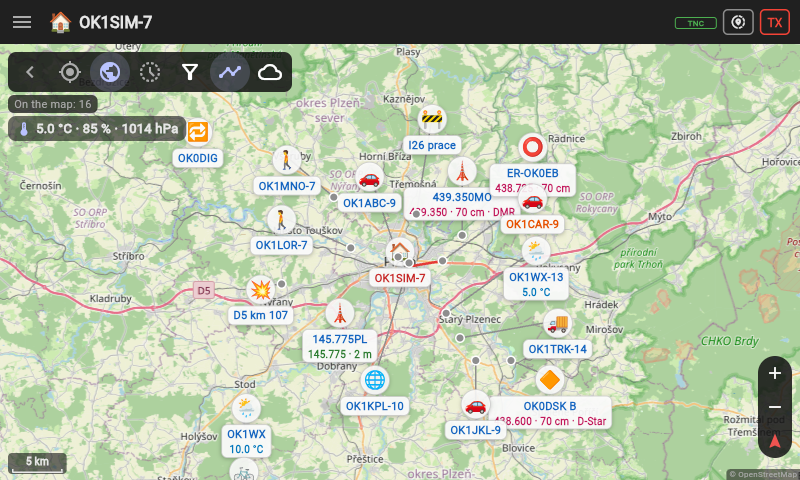
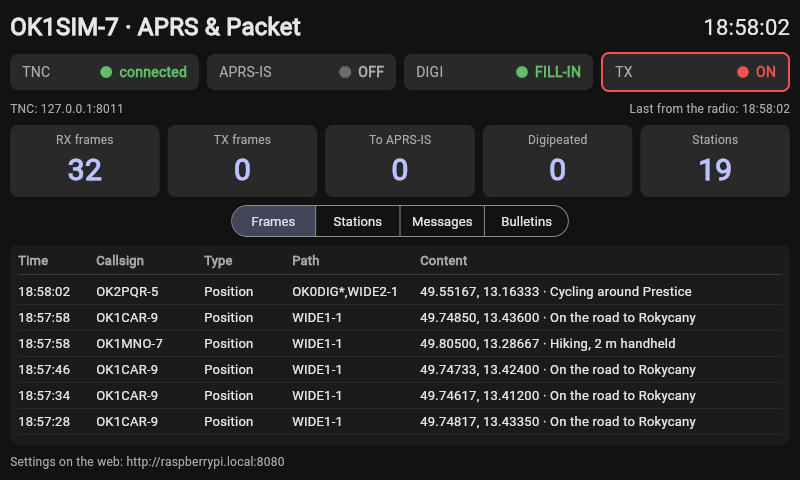
--dashboard)0What you need
- A Raspberry Pi 3B, 3B+, 4 or 5 and its power supply (Pi 4: USB-C 5 V / 3 A, Pi 3: micro-USB 5 V / 2.5 A)
- A microSD card, 16 GB or more
- A TNC: a KISS TNC on USB (a radio with KISS over USB, NinoTNC, Mobilinkd…), a network KISS TNC, or a sound card / an AIOC or DigiRig cable with Direwolf
- A screen (optional): a 5" HDMI touch display (800×480), the official 7" display or any monitor – without one, only the web
1Prepare the card
- Install Raspberry Pi Imager on your computer.
- Choose the device (your Pi), the system – with a screen Raspberry Pi OS (64-bit), without one Raspberry Pi OS Lite (64-bit) – and the card.
- Click Next, then Edit settings:
- Hostname:
aprs(the Pi is thenaprs.local) - a username and password, e.g.
piand a password of your own - Wi-Fi: the network, its password and your country (not needed with a cable)
- on the Services tab enable SSH
- Hostname:
- Save, confirm writing and wait for Imager to finish.
2Connect and power on
Put the card in the Pi, connect the screen (a 5" HDMI display sits on the GPIO pins and takes the HDMI connector from its box), the TNC to USB and the power last. The first start takes a few minutes.
3Log in to the Pi
From a computer in the same network open a terminal (Windows: PowerShell, macOS and Linux: Terminal):
ssh pi@aprs.localpi is your username. Answer yes about the key and type the password.
With a keyboard on the Pi you can open its Terminal instead.
4Install – one command
Pick the line for your screen and paste it in the terminal:
curl -fsSL https://aprs.ok1sim.cz/pi.sh | bash -s -- --touch-5inchcurl -fsSL https://aprs.ok1sim.cz/pi.sh | bashcurl -fsSL https://aprs.ok1sim.cz/pi.sh | bash -s -- --no-displayAt the end the script asks for a web password – set one, the web can transmit. About 5 minutes on a Pi 4, up to 15 on a Pi 3. Then restart:
sudo reboot5Set up the station
On a phone or a computer open http://aprs.local:8080, log in and fill in Settings:
- TNC connection: a TNC on USB = Serial port (USB)
/dev/ttyACM0or/dev/ttyUSB0; a network TNC = KISS over TCP (network); a sound card = Sound-card modem (Direwolf) - Station: the callsign with its SSID, position, comment, beacon
- APRS-IS (iGate) and Digipeater as you need
- Station telemetry: packet counts and the farthest station heard as graphs on aprs.fi – Internet is enough
Save and switch TX on in the top bar. The same works on the touch screen (the ☰ menu at the top left). Done – the Pi now starts by itself.
Updating
Run the command from step 4 again. Settings, messages and the password stay.
When something does not work
The screen stays black or shows only the desktop
Give it 1–2 minutes after starting. The service: systemctl status aprs-kiss, its log: journalctl -u aprs-kiss -f.
Touch does nothing or lands elsewhere
Installed with --touch-5inch? In /boot/firmware/config.txt, on the line dtoverlay=ads7846,…,
change swapxy=0 to swapxy=1 (axes swapped) or swap the xmin and xmax values (an axis reversed), and restart.
aprs.local does not open
Use the Pi's IP address – the install prints it, so does your router or hostname -I.
The USB TNC is not there
ls /dev/ttyACM* /dev/ttyUSB* shows whether the Pi sees it. The port needs the dialout group – the script adds you, it applies after a restart.
Forgotten web password
/opt/aprs-kiss/venv/bin/aprs-kiss-server --set-password && sudo systemctl restart aprs-kissUninstalling
sudo systemctl disable --now aprs-kiss; sudo rm -rf /opt/aprs-kiss /etc/systemd/system/aprs-kiss.service; rm -f ~/.config/autostart/aprs-kiss-display.desktop; sed -i '/aprs-kiss/d' ~/.config/labwc/autostartSettings and messages stay in ~/.local/share/aprs-kiss.